 1
1Big Talk
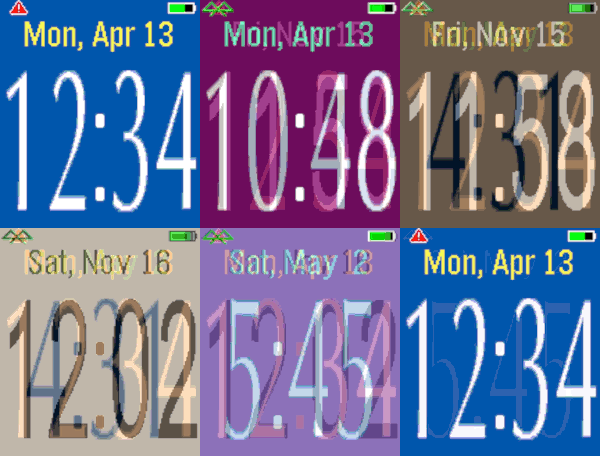
FacesThis watchface is based on Big Watch and speaks the time to you with a tap or flick of the wrist. There are many customizable settings including background color, vibrations, connection, battery indicator. A disconnected alert appears if you are separated from your phone. The spoken time settings include volume, format of spoken text, and 12/24 hour formats. Flick your wrist twice if you want to stop the spoken text. Quiet time is supported, usually activated in your Pebble by a long back button press.
 6
6Fit Tracker
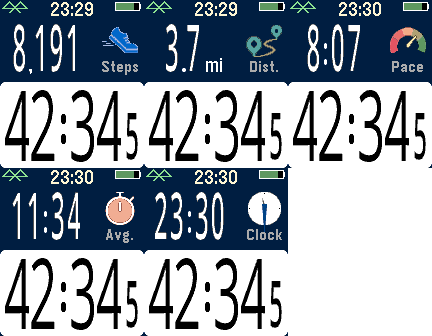
Health & FitnessExercise app that records elapsed time, heartrate, and distance. Exports FIT files for Strava and other online applications. The bottom button is used for starting and stopping. The top button switches the top line mode between steps, distance, current speed, average page, current time, and (if available) heartrate. Device-dependent features are heartrate, speaking, and touchscreen. There are custom settings for the watch to speak the interval distances or times (Pebble Time 2, Pebble Duo). The touch screen can be used to switch between the modes, similar to the up button. A touch over 0.2 seconds is recognized, and the left and right side of the screen change the mode forward or backward. Use the middle button to activate the menu for custom feature. These include showing tenths, bluetooth, battery, metric/imperial. Interval notifications by time or distance are supported, and the notifications can be by vibration or (if available) the speaker announcing the interval. You can see your mapped workouts at https://fit.setpebble.com. In order for your activity to be linked to your account, you will need to enter your Pebble serial number both for your account and when you adjust the app settings using the Pebble companion app. After a workout, do a long press on the up button to either Save or Delete your workout. If saved and you have a SetPebble account, you can see your workout at https://fit.setpebble.com. There is a Strava limit of 10 users (including me!), and I am not allowed to request an increase until we reach 10 users.
 17
17Pal Basics
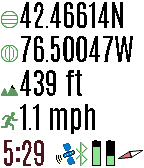
Tools & UtilitiesView the GPS satellites as seen by your Pal Strap. The top button switched between GPS location, a map of your area, a list of satellites, and the relative position of the satellites. A long press switches to the previous screen. When viewing a map, press the bottom button to zoom in. A long press zooms out. Press the select button for custom settings. If you have trouble locking in the GPS location using your Pal Strap, first make sure your Pal Strap is working by using the app supported by the Pal Strap creators. The Pal Strap is not designed for Pebble 2, but this app will work on the P2. If you do modify your Pal Strap for the P2, let me know!
 40
40Pal Boost
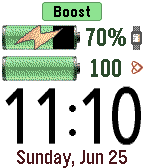
Tools & UtilitiesPal Boost enables the power boosting features for Pal Strap devices. The top button activates boost, and the bottom button disables boost. The middle button activates the custom settings menu, where boost and other custom choices can be set. Note that disabling the boost is not reflected in the Pebble until the Pal Boost app is closed, which is why the "charging" icon is sometimes displayed for the Pebble battery even though boost is disabled. This behavior is either a flaw or feature in the Pal Boost firmware (not sure which!). The Pal Strap is designed for Pebble Time, not Pebble 2. If you jury-rig the Pal Strap to use the Pebble 2, please let me know how!
 173
173Pal Locator
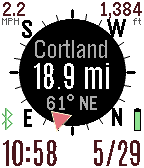
Tools & UtilitiesThe Pal Locator app helps you find or return to specific locations. It works with the Pal Strap or your smart phone GPS. You can drop markers at your current location or enter a specific location using the custom Settings. The direction and distance for each marker is displayed in the app. Use the top button to switch between markers. You choose your refresh rate, or use the bottom button to manually refresh your GPS. Hold down the bottom button with a long press to activate the map. Use the middle button to display the menu to control your Pal Strap, set or clear markers, or change the custom settings. You can set labels for your custom marker through the settings page on your Pebble smart phone app. Up to seven custom markers are supported. If you have the compass activated but it is not working, move your Pebble watch in a figure-eight gesture a few times. You can also have your orientation based on your direction of travel according to your GPS. If you have trouble getting this app to work with the Pal Strap, first get the Pal Strap working using the manufacturer's Pebble and smart phone apps.
 27
27Pal Fit
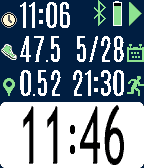
Health & FitnessFitness app specifically designed for the Pal Strap. Bottom button to start/stop. Top button to switch screens, or a long top button press to reset the time and distance. Press the middle button for the settings menu. If you are using the Pal Strap for GPS, the distance icon will either be red or green depending on whether the GPS signal is locked. You should first get the Pal Strap working with the Hey Pal app before using this app. Calculating distance is based on the haversine formula, and it is admittedly an approximation based on a homegrown algorithm. Your mileage will (literally) vary! Although the Pal Strap is designed for the Pebble Time, I am releasing this app for the Pebble Round and Pebble 2 also since it works with phone-based GPS. If you hack the Pal Strap to work with one of these devices, let me know!
 186
186Pal Map
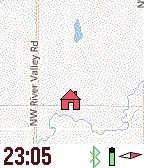
Tools & UtilitiesMapping on your wrist, with panning, zooming, and realtime tracking. Markers can be dropped and distances estimated. And the best feature? Designed for Pal Strap (but works without it also). Top button for backlight, and bottom button to pan map based on watch tilt. Press middle button for zooming, panning, and access to the menu. The menu has Pal Strap options, marker options, and the custom settings (which include mapping service, vibration, icons displayed, etc.). This app is under development, and will be completed once I have a Pal Strap in hand. Mapping tiles Copyright and courtesy of OpenStreetMap, OpenStreetMap contributors, Google Maps, ESRI ArcGIS, Stamen, Bing, and NOAA. Stamen data by Stamen Design (http://stamen.com); OpenStreetMap (http://openstreetmap.org) mapping tiles under Creative Commons licenses.
 64
64HR Easy
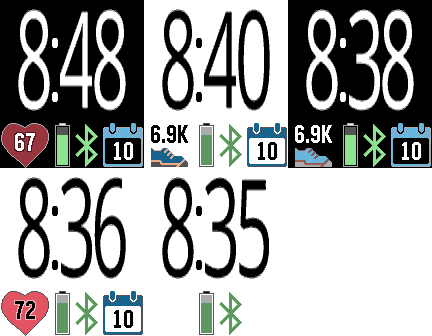
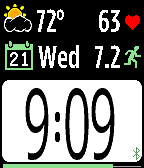
FacesEasy-to-read watchface with heartrate, steps, battery, bluetooth, and date. Several customizable options.
 103
103HR Vitals
FacesThis watchface shows your vital fitness and weather information in big easy-to-read text. It is the companion watchface for HR Stopwatch. Displays heartrate, steps, and weather on main screen. Tap to show fitness information of distance, calories, active and sleep times. Tap again for humidity, air pressure, wind, and cloud coverage. Tap again for a weather description and last update time. Want more? Create timeline pins for forecast information. Daily pins will be created for the next three days. There are a dozen custom settings for units, screen inversion, battery display, etc. Heartrate display requires a heartrate monitor device, such as the Pebble 2 or the TYLT VÜ Pulse smartstrap.
 27
27HR Stopwatch
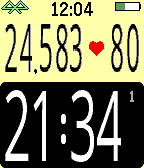
Health & FitnessHere it is - a stopwatch that you can read while exercising! No more squinting or stooping to see the little numbers. HR Stopwatch displays the elapsed time, number of steps, and (if available) your heartrate. Use the bottom button to start or stop the stopwatch, the top button for resets, and the middle button to see the menu of custom setting. These custom settings include interval alerts, screen format, vibration alerts, battery display, and more. Want to keep the stopwatch going in the background? No problem. You can switch to another watchface or app and the elapsed time will continue to accumulate.
 88
88Webcam
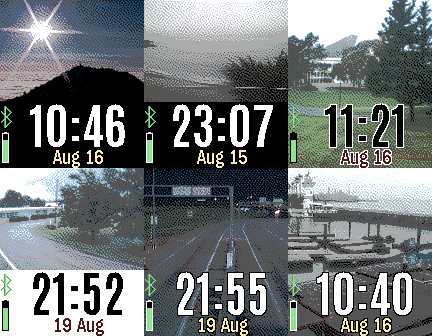
FacesWebcam displays live webcam images on your Pebble watch. The webcam is determined by your actual location, a specific location, or a unique webcam identifier. If you want to add your webcam, visit https://webcams.travel There are many custom settings for screen display, battery, connectivity, vibration alerts, and more.
 55
55Webcams
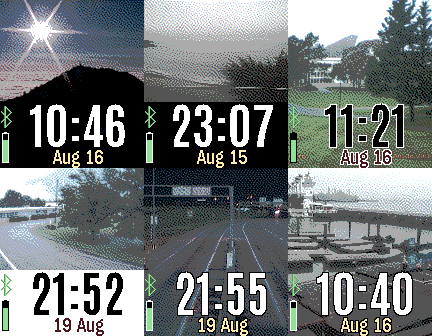
DailyDisplays the webcams closest to your location. The images are refreshed periodically but are not streamed continuously for battery reasons. Many custom settings, including image size, screen background, date format, battery, connection, hourly vibrations, and more. Webcam list is courtesy of https://webcams.travel. You can add your own webcam to this service. There is a companion Pebble watchface named "Webcam" if you'd like to see a single webcam image as a watchface.
 161
161Escape the Room
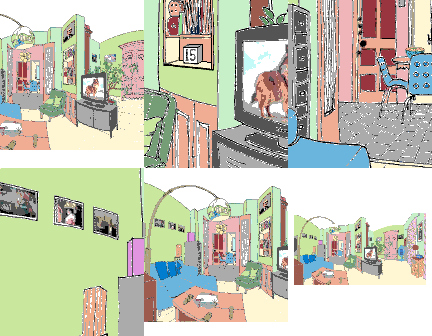
GamesYou are locked in a room, and must find keys to unlock the door to escape. Use the up and down buttons to zoom in and out, and the middle button to select an item. A long press to the middle button will open the inventory, action, and custom settings menu. If you get stuck, look closely at everything. There are clues hidden everywhere. There are no instructions for the locked puzzles - just figure them out. There are several methods for navigating the room though the custom settings menu. Choose the one that is easiest for you. Good luck! Credits to Mathew Reiss for the idea and Jérôme Motte for the background image.
 77
77Foresail
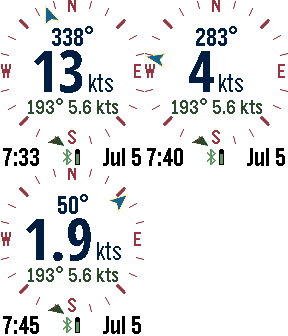
DailyThe ultimate Pebble sailing app! Displays your realtime speed and heading, along with wind speed and direction on a compass dial. Other screens include the current weather conditions, weather forecast, tide information, a zoomable map, and a sailing timer. You can switch screens using a long press to the up or down buttons. The select button on the Pebble activates the screens and settings menu. Speed and bearing is calculated using the smart phone GPS. Use the up and down buttons to zoom the map. The menu has a button for refreshing weather (or the map if it is visible). Select from several different weather services, including OpenWeatherMap.org, Yahoo Weather, NOAA, and the commercial service Forecast.io for premium subscribers. If tide is activated, the nearest NOAA or Canadian station is used to display tide information. GPS is used to find the closest weather station unless a manual location is entered. Customizable settings include the speed units (knots, mps, mph, kph), temperature scale, air pressure, date format, battery, connection, vibration alert, backlight, and more. SetPebble subscribers have access to Forecast.io weather information and more-frequent updates. Mapping tiles Copyright and courtesy of OpenStreetMap, OpenStreetMap contributors, Google Maps, ESRI ArcGIS, Stamen, and NOAA. Stamen data by Stamen Design (http://stamen.com); OpenStreetMap (http://openstreetmap.org) mapping tiles under Creative Commons licenses.
 245
245GPS Tracker
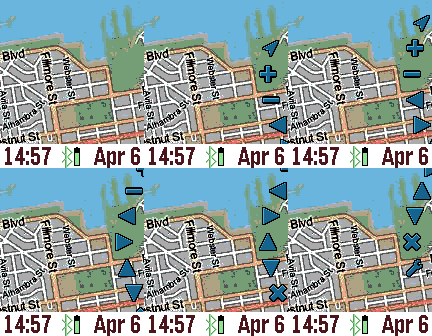
Tools & UtilitiesThe GPS Tracker app is a powerful wrist map, and can also be used to track your pals. The top button activates the backlight, and the bottom button pans the map depending on the tilt of the watch. The middle (select) button activates the menu wheel. The menu wheel has options for updating your location, zooming in (+) and out (-), panning, markers (X), and custom settings. To drop a marker, pan the map and choose "Add New Marker" from the markers menu. You can customize the marker label in the Settings page. The last choice in the markers menu is GeoLocation for displaying the street address. If you give yourself a NAME and specify a GROUP in the Settings screen through the Pebble Time phone app, then your location will be shared with others in the same GROUP. Use the group name "public" to see others that want to be seen. The “Wakeup” feature can be used to periodically send your GPS to your pals, even if the GPS Tracker is not active. The settings menu contains many options, including map service, process image, date format, and more. For the process image settings, you can choose to dither and/or boost the contrast of the mapping tiles for better readability. Location refresh is how often the GPS on the smart phone is queried. Mapping tiles Copyright and courtesy of OpenStreetMap, OpenStreetMap contributors, DigitalGlobe, Google Maps, ESRI ArcGIS, Bing maps, Stamen, and NOAA. Stamen data by Stamen Design (http://stamen.com); OpenStreetMap (http://openstreetmap.org) mapping tiles under Creative Commons licenses.
 82
82Yelpful
DailyHungry? Thirsty? Need a haircut? Use this app to find local places close to you. This app is better than the official yelp app since you can see a map, view images, deals, and the category. If you see green stars, then the place has a yelp deal! Customize by choosing the sort method, miles or kilometers, view only deals, and GPS accuracy.
 62
62X-Ray
GamesPlace your Pebble above your left hand and start the x-ray scan. If you move your hand as you tilt your Pebble watch, it will appear as if you are viewing an x-ray. The up button starts the calibration or pauses the x-ray scan. The middle button shows the custom settings. Use the bottom button to exit the x-ray scan and return to the home screen. Custom settings include keeping backlight on and whether or not you find a fracture in your finger!
 14
14511NY
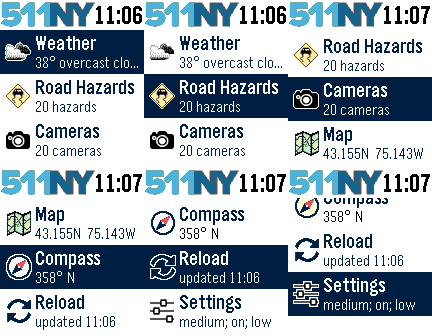
DailyThe 511NY app displays weather and traffic information to help you navigate the roadways of New York State. When launched, you can view your local weather by selecting the first menu item. The closest recorded road hazards are displayed when you choose the Road Hazards item. The roadway hazard list is sorted by distance from your location. Your location is based on your smart phone GPS, so make sure Location Services are enabled for your Pebble Time smart phone app. A list of traffic cameras is next in the main menu, also sorted based on your location. When viewing a traffic cam, the UP button displays the camera name, the MIDDLE button refreshes the camera image, and the DOWN button displays the distance to the camera. The Compass and Map features are next. The compass may need you to rotate your Pebble in a figure eight motion a few times for calibration. When viewing the map, use the UP and DOWN buttons for zooming, and the MIDDLE button to refresh your location. There are custom settings for text size, automated reloading of information, and GPS accuracy. This app was originally created for the DevPost HackFrost competition in February, 2016.
 24
24Heart
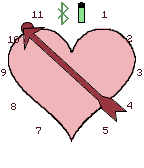
FacesA Valentine's day watchface. Tap for date.
 61
61Rings
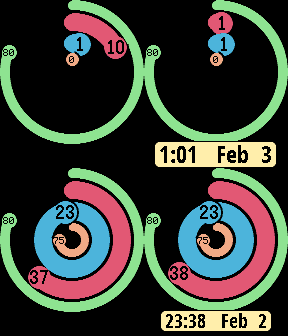
FacesThe Rings watchface shows the battery level in the outermost ring; next are the minutes ring; then the hours ring; and finally your daily steps in the central ring. Pebble Health is required, so the daily steps are only available on Pebble Time hardware (sorry Pebble Classic users!). Tap your wrist to see the date and a digital display of the time. Custom options include setting your target daily steps number, displaying tap and date behavior.