 473
473Daily Steps
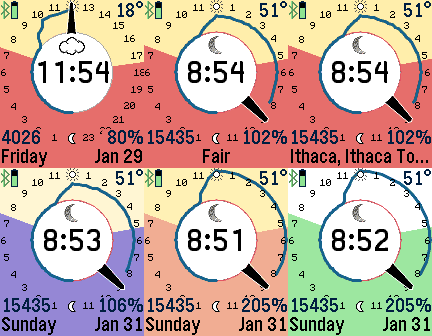
FacesDisplays a graph of your activity steps against a 24-hour clock. Track your daily activity, and compare it against yesterday's. Use the custom Settings button for different options, including setting your step goal. The sunrise and sunset times are where the top and bottom colors change. Tap the watch to display weather information. There are customizable settings for your daily goal, temperature scale, screen colors, and more. Pebble Health is required, so the daily steps are only available on Pebble Time smart watches. Pebble Classic users can still reference the 24-hour clock, current weather temperature, and sunrise/sunset information.
 238
238Diurnal
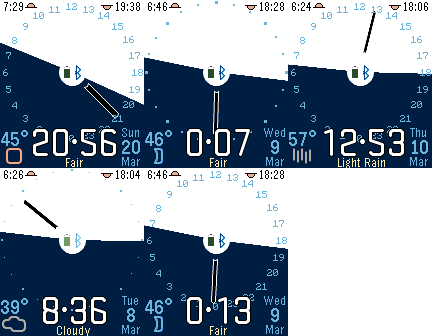
FacesA 24-hour clock showing sunrise, sunset, and current weather conditions. Customizable for temperature scale, date format, hour markers, and weather service. Circadian watchface design and banner image by Emmanuel Campos.
 730
730Focus
FacesFocus displays images from your photo library or from online sources. Open the Pebble Settings to choose your images. iOS users can choose to take an image from the camera or photo library. Both iOS and Android users can enter the URL of an image. Once an image is selected, you can adjust the image by dragging it or using the sliders to change the scale, brightness, and contrast. Custom settings include location of time, colors, date format, battery, connection, and vibration alerts.
 43
43Azimuth
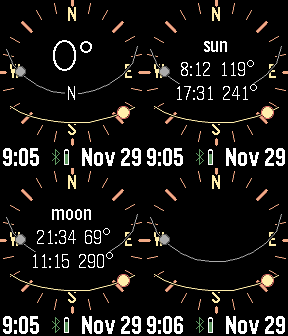
Tools & UtilitiesPlan for the perfect camera shot. This app calculates and displays the sun and moon path against a compass. Tap or press buttons for rise and set times. Many custom options, including backlight, moon positions, screen inversion, battery, connection, and vibration alerts.
 193
193Localscape
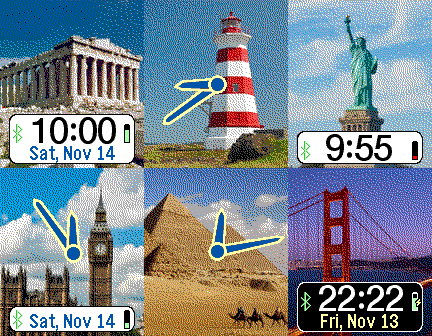
FacesLocalscape displays images based on your location. The images are public Flickr images with geotags. There are many custom settings, including refresh interval, digital/analog watchface, date format, battery, connectivity, and tap behavior. Recommended settings for maximizing battery life are to minimize GPS usage, reduce the interval for new images, and disable using tap for switching images.
 39
39Mad Eye Moody
GamesApp that displays an eyeball that moves and blinks. Put it on a head strap for a fun costume prop! Top button: start animation Middle button: light on/off Bottom button: pause/resume Open Pebble Settings to customize eye color, tap behavior, default light setting.
 60
60Moon
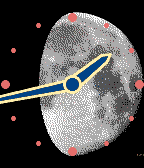
FacesThe moon phase is the backdrop. Tap or shake to see the date, moon rise, and moon set times. Several custom options for display and tap behavior. There is also support for a southern hemisphere moonface (upside-down compared with the northern hemisphere moon) This watchface was inspired by David Viering, a passionate moon watcher.
 20
20Rady8
FacesThe current time designed for the Pebble Time Round (but works on Pebble Time also!). This app had a design constraint - all numbers had to be drawn using only radial lines and concentric circles. The time is displayed, and animated every minute when changed. This app is customizable for colors, vibration alerts, connectivity status, battery charge, and animation.
 9
9Centiminutes
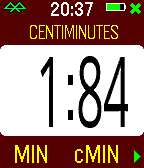
Tools & UtilitiesThe Centiminutes app is a stopwatch that measures time in centiminutes, which are hundredths of a minute. This watch is based on Big Stopwatch, so it has similar customizable settings for date format, screen background, vibration alerts, intervals, and more. Use the bottom button to start/stop, the center button to briefly display the time, and the top button to reset. A long press of the center button activates the settings menu. Yes, this is an unusual stopwatch.
 138
138Mercator
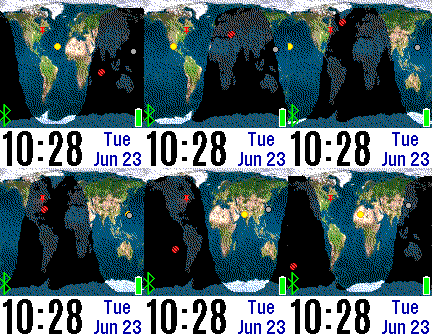
FacesView a mercator projection of the earth tracking the progress of the sun and moon. There are three earth displays: Living Earth, NASA Blue Marble, and Visible Earth. The International Space Station can also be tracked, and for world travelers you can view your location on our planet. There are four possible icons: sun, moon, your location (red push-pin), and the ISS (red icon). There are custom options for date format, screen background, turning on and off the icons, switching between earth images, refresh rate, and more. Note that ISS tracking is updated twice a minute, which uses phone data and Pebble battery. The most battery-efficient settings are to not track ISS and turn off your GPS location, which means the time updates every minute and the globe recalculates the sunlight areas depending on the refresh setting which has a one-hour default.
 59
59SP Settings
Tools & UtilitiesThe SetPebble Settings app is for controlling your custom settings all from your Pebble watchface. To use this utility app, enter the same serial number that you use to store your custom settings for SetPebble-enabled apps. You will next see a list of all your SetPebble apps that are linked to your serial number. Select and app and then select the setting to change. SetPebble apps include Fair Weather, Big Weather, Maptastic, Earth, Pocket Glider, Blue Marble, Cool Weather, Night Sky, Camoodle, Medical ID, Radar, and many more. Visit SetPebble.com for the full list. If you don't have SetPebble apps, then this utility app is not for you. However SetPebble users will enjoy the convenience of changing their watchface and app settings without pulling out their smart phone!
 196
196Blue Marble
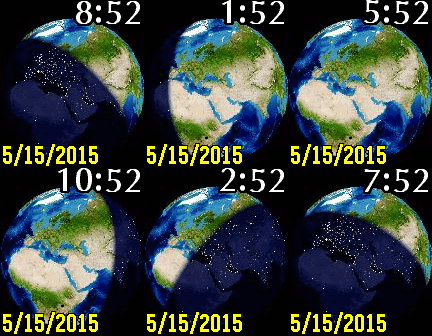
FacesDisplays the current view of the Earth, showing night shadows, cloud coverage, temperatures, and more. Customizable by viewpoint, altitude, zoom, tap animations, date formats, vibration, battery, bluetooth. Data courtesy John Walker (http://www.fourmilab.ch/earthview).
 228
228Pocket Glider
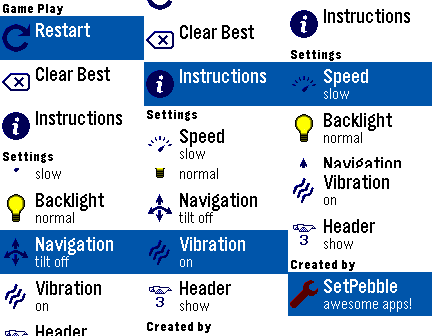
GamesFly a paper glider through a house, using heating sources to keep you aloft. Try to collect all objects without bumping into shelves, tables, or landing on the floor. Navigate by either the top and bottom buttons, or tilting your Pebble from side to side. The middle button activates the settings menu, where you can restart the game, reset the best score, or change custom settings.
 57
57Maze Craze
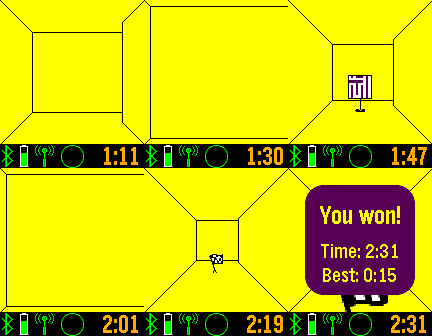
GamesFind the flag in the maze, and see other players in the maze also. Use the up and down buttons to turn, and the middle button to move forward. A long press of the middle button will open an options menu. There is an option for tilt navigation control. Discover helpers in the maze to show the map, compass heading, flag proximity, and flag direction. Network play limited to iOS and Android 4.4+. More levels available to subscribers. Track your progress at https://SetPebble.com/mazecraze
 50
50Netatmo
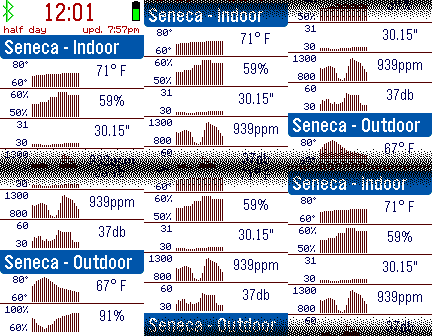
DailySee your Netatmo home weather station readings on your Pebble smart watch. Enter your Netatmo credentials to see your temperature, humidity, and other readings. Customizable for temperature and pressure units, header format, vibration alerts, and more.
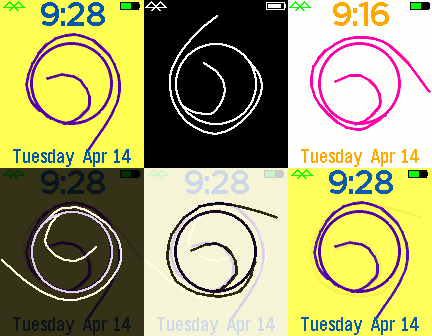 19
19Squiggles
FacesThe squiggle line stars on the hour and ends on the minute (or is it the other way around?). Flick your wrist to see the time and date. Customizable settings for several languages, battery icon, connectivity icon, screen background, and vibration alerts.
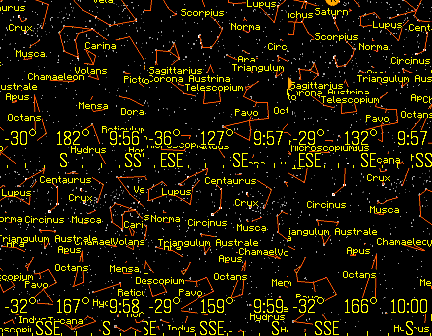 361
361Night Sky
Tools & UtilitiesView the stars, constellations, and planets of the night sky. The up and down buttons change the field of view. Click the middle button for custom settings, selecting planets, or choosing a constellation. The orientation can be set by compass, tilting the Pebble, or can be locked to a specific heading. Latest Pebble models can use touch to pan the display. Memory is tight, so only 1,000 stars are in the original Pebble and 4,000 stars for the newer Pebbles. Voice dictation is supported for newer watches. To use this feature, select "Voice" from the menu, and clearly state the name of a planet or constellation. Some sample terms to try are "Moon" and "Aquarius". This app has been updated for the newest Pebble Time 2 and Pebble Round 2 apps.
 118
118Medical ID
Health & FitnessThe Medical ID app displays your emergency information. Your custom text and an alert image periodically flash, bringing attention to the watch. This app employs a special wakeup feature and can be used with any Pebble watchface to periodically display your health info. Custom settings include choosing the display format, time intervals, alert image, vibration alerts, flashing, and more.
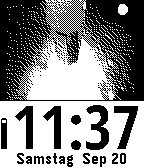 4
4Vidiot
FacesDisplay a custom video clip on watch. This app can be customized for your own video. The default video is Apollo 14, and there are many customizable settings. Visit https://SetPebble.com/vidiot to create your video app.
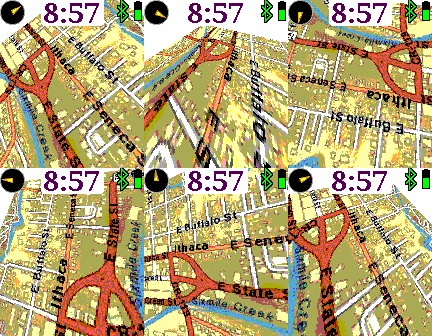 239
239Earth
Tools & UtilitiesA map that rotates, tilts, and zooms. Up and down buttons zoom in and out. Pressing up or down continuously pans the map forwards or backwards. The middle button shows the custom settings, and a long middle press resets the map to your current location. Customizable features include mapping service, displaying the time, compass, battery, bluetooth, screen inversion, vibration, map labels, and more.