 15
15Clinch
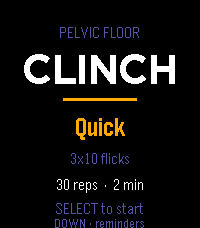
Health & FitnessGuided pelvic floor training, on your wrist. Clinch runs your pelvic floor sets so you don't have to count in your head. Each rep is a guided squeeze and release, cued by vibration, so you can train with your wrist down and your attention somewhere else. Pick a protocol and press start: Mixed — 10 quick reps to train the fast reflex, then 3×10 five-second holds for endurance. The one to run daily. Long holds — 3×10, five seconds on, five off. Straight endurance work. Quick — 3×10 short flicks in about a minute, for when you've only got a moment. While a set runs, a column fills as you squeeze and drains as you release, so a glance tells you where you are without reading a number. A short buzz starts each rep, a double buzz sends you into the release, and a longer pattern marks the end of a set. Pause, skip a rest, or bail out any time. Reminders that fit your day. Set up to three daily nudges and put them at any hour and minute you like — hold to open the editor and scroll each field. When a reminder fires, the watch buzzes and opens straight to a start prompt. It all runs on the watch's own scheduler, so it works whether or not your phone is nearby. Stays on your wrist. No account, no companion app, no data leaving the watch. Your protocol choice and reminder times are saved locally between sessions. Controls Menu: SELECT starts · UP changes protocol · DOWN opens reminders During a set: SELECT pauses · DOWN skips a rest · UP or BACK returns to the menu Reminders: UP/DOWN pick a slot · SELECT toggles it on/off · hold SELECT to set the time ***Medical Disclaimer*** Clinch is a training timer, not medical advice. Pelvic floor exercises are widely recommended, but roughly a third of people doing them from written instructions use the wrong muscles. If you're training for a specific symptom rather than general maintenance, it's worth seeing a pelvic floor physical therapist once to confirm your technique — it'll make every session here count for more.
 15
15Match Counter
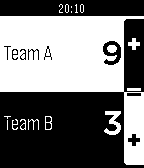
Health & FitnessEasy app to count points in a Match
 15
15SongBook
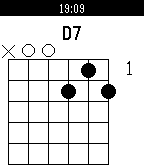
RemotesLinks with SongBook Android or iOS to show current and next song title, subtitle and chords. Use Select button to view chord definitions for current song. Move to previous/next song in the SongBook app with the Up/Down buttons.
 15
15AstroCast
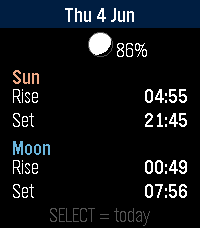
DailyAstroCast = Astronomical Forecast AstroCast turns your Pebble into a precise sun and moon almanac for your exact location. Open it for a clean overview of today, then step backward or forward through any day to plan ahead or look back. Features: * Overview page with sunrise, sunset, moonrise, and moonset at a glance, plus a small location-aware moon showing the current phase and illumination. * Detailed sun page: sunrise, sunset, solar noon, maximum altitude, day length, rise and set azimuth, and civil, nautical, and astronomical twilight. * Detailed moon page: moonrise, moonset, illumination, phase name, moon age, transit, maximum altitude, and rise and set azimuth. * A moon drawn and shaded exactly as it appears in your sky, rotated for your latitude rather than the flat calendar view. * Automatic positioning, or fixed coordinates you set yourself, with the nearest place name shown for confirmation. Navigation is simple: up and down move between days, select jumps back to today or switches between the sun and moon detail pages. Built for all Pebbles
 15
15Big Date
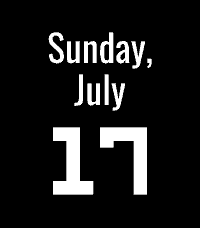
Tools & UtilitiesShows a simple date view. Great for assigning to a Quick Launch action when using faces that don't show the date!
 15
15Find My iPhone
Tools & UtilitiesTrigger the real Apple Find My Play Sound alert for your configured iPhone from a Pebble watch through your self-hosted backend
 15
15Series Timer A
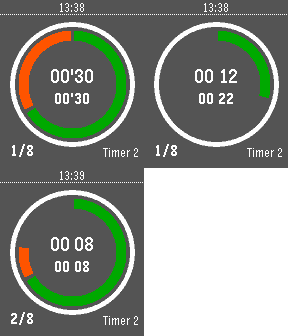
Tools & Utilities'Series Timer A' is a copy of 'Series Timer' watchapp. Using both watchapps you can launch an second timer when an first timer is running. You will have a new full set of timer settings. In 'A' version, timer name and serie count display are switched.
 15
15Pomodoro Clock
Tools & UtilitiesPomodoro Clock Stay focused, one session at a time — right on your wrist! A simple Pomodoro timer for your Pebble watch. Work in focused 25-minute sessions with short breaks in between. Features: 25 min work / 5 min break cycle Long 15 min break every 4 sessions Bold orange display with large countdown Progress bar shows time remaining Vibration alert when session ends Auto-cycles between work and break Controls: SELECT — Start / Pause / Resume UP — Restart current timer DOWN — Stop Stay productive without reaching for your phone.
 15
15Dice
GamesDice your watch. Shake the clock to roll a die!
 15
15Khelljyr Framework Example (Keyboard Sc
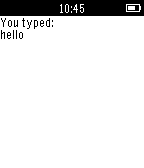
Tools & UtilitiesThis is an example made with Khelljyr Pebble Framework The topic of this example is the Keyboard scene feature. /!\This is a code example for pebble. Unless you are a developer, this application is useless for you, don't blame it ;p/!\ If you want to see the code of this project, go on the github project ! (https://github.com/nvareille/Khelljyr)
 15
15WDW Queues
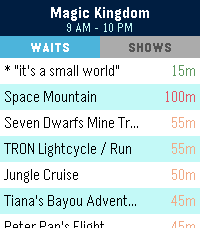
Tools & UtilitiesSkip the guesswork. WDW Queues brings live Walt Disney World data straight to your Pebble — no phone-fumbling, no app-switching, no squinting at a tiny map. What you get: - Live wait times for every attraction across Magic Kingdom, EPCOT, Hollywood Studios, and Animal Kingdom. - Show schedules for every performance, with the next start time highlighted. - Opening and closing hours for each park, shown right on the park picker so you know at a glance where's still open. - Favourites — pin your must-do rides and shows to the top of the list, kept in sync across park switches. - Sort by wait (ascending or descending) or alphabetically. Built for the watch: - Readable at a glance. Traffic-light colour coding (green / amber / red) means you don't need to read numbers to know if it's a walk-on or a two-hour queue. - Works on both Pebble Time 2 (rectangular) and Pebble Round 2 (circular) — with native layouts for each. - Auto-refreshes every five minutes while open; pull the latest on-demand by switching parks. Powered by ThemeParks.wiki — the community-maintained open API for theme-park wait times.
 15
15Moon Ascending Descending
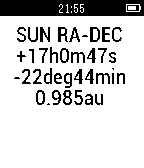
DailyMoon Ascending Descending Slope. All the calculation is done locally in pebble ( no link to internet is needed). The moon declination slope will shown as a real calculated graph in pebble by pressing the center button. The ticks on the time axis are in units of day. The ticks on the declination axis are in units of degree. The down button on the right side of the pebble watch will show the position of the moon in celestial coordinates (RA,DEC). If the current declination does increase (ascending moon) we call it in Swiss German (obsigänd) if it is in the descending it is called (nidsigänd), the descending moon. The numerical value on the right is the first derivative of the declination to the time (degree/day). The value d is the second derivative of the declination to the time (degree/(day*day)). To get suns position (RA,DEC) click the upper bottom on the right of the pebbel. The difference of the RA values are representative for the moon phase, as example 12 hour full moon, 0 hour new moon. A drawing of the moon phase, according the difference of the right ascension (RA) of the moon and the sun, will be included in the first picture together with the moon slope ascending descending curve. Remark: In a next release and if needed the accuracy of the object positions could be improved, now in the order of a few minutes, to less than one minute.
 15
15MORE-RECOMO
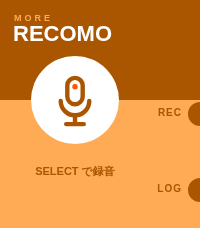
Tools & UtilitiesMORE RECOMO This is an enhanced version of the original RECOMO app. It’s a voice memo and notification app. Jot down, save, and set reminders for thoughts that pop into your head. The app enters recording mode as soon as you launch it. Main Features 1. Voice Recording & Transcription Automatically transcribes audio using Pebble’s speech recognition 2. Log Management Saves transcribed content as logs (up to 20 entries) Use the LOG button to view a list of past logs Unneeded logs can be deleted 3. QR Code Display Converts saved text into a QR code and displays it Can be scanned with a smartphone 4. Notification Scheduling Set up notifications to be received from Pebble at a specified time A countdown is displayed on the home screen while a notification is scheduled Notifications can be canceled using the UP button Voice recognition uses the Pebble free plan, which allows 50 uses per month. Translated with DeepL.com (free version) MORE RECOMO 旧RECOMOアプリの機能強化版です 音声メモ&通知アプリです。 ふと思ったことをメモ、保存、思い出す通知機能。 アプリを起動するとすぐに録音モードになります。 主な機能 1. 音声録音・テキスト化 Pebbleの音声認識で自動的にテキスト化 2. ログ管理 テキスト化した内容をログとして保存(最大20件) LOGボタンで過去のログを一覧表示・閲覧 不要なログは削除可能 3. QRコード表示 保存したテキストをQRコードに変換して表示 スマートフォンで読み取ることができる 4. 通知スケジュール設定 指定した時間後にPebbleから通知を受け取る設定が可能 通知設定中はホーム画面にカウントダウンを表示 UPボタンで通知をキャンセル可能 音声認識は50回/月 のRebble無料プランを利用しています。
 15
15LIFX Client
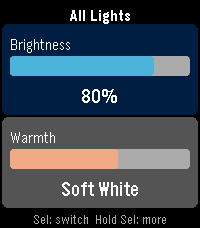
RemotesControl your LIFX smart lights from your Pebble. LIFX Client lets you adjust brightness and color temperature on the fly, or pick from a palette of colors. Features: - Adjust brightness in 5% steps - Tune warmth from daylight (6500K) to candlelight (2500K) - Choose a color from 8 presets - Target any individual light or group from your LIFX account - Works on every Pebble: round watches get a purpose-built arc UI, larger screens scale up automatically Controls: - UP / DOWN: adjust the active slider - SELECT: switch between Brightness and Warmth - HOLD SELECT: open the action menu In Color Mode, the Warmth slider shows your chosen color. Press UP or DOWN on Warmth to return to white light. Setup: 1. Go to cloud.lifx.com/settings and generate a Personal Access Token 2. Open the Pebble app on your phone and find LIFX Client 3. Open Settings, paste your token, and save 4. Launch the app -> HOLD SELECT -> Select Target to pick a light
 15
15HA Voice Tasks
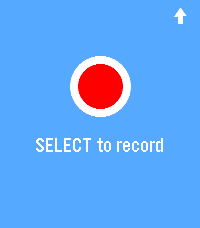
Tools & UtilitiesDictate voice notes on your Pebble and save them as tasks to Home Assistant todo lists.