 1
1Organik Time
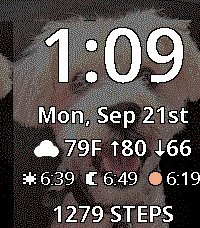
FacesYour photos. Your type. Your time. Turn Pebble Time 2 into a personal photo watchface with a live phone preview and a library of complete presets. • Choose photos on iPhone or Android. A Safari/Chrome import option is included when the Pebble app cannot open its photo picker. • Fill the screen: crop and position, zoom 100–300%, dim, or switch to black and white. Fine-tune dithering, sharpness, contrast and shadows. • Choose 20 freely licensed fonts and all 64 display colors. Large fitted clock sizes and automatically fitted data lines keep text readable. • Arrange four data rows: date, weather, steps, heart rate, stocks, or sunrise/sunset/evening golden hour. Hide any row. • Adjust clock/data placement, spacing, date format, AM/PM and battery/Bluetooth indicators. • Save complete photo-and-layout presets. Tap a preview to load it; the green ✓ Loaded badge confirms your choice. Settings stay open until Save and apply. For Pebble Time 2 (200 × 228). No Organik Connector required. Photos are processed locally. Weather/stocks require a connected phone and internet; health readings depend on Pebble Health. Presets use local phone storage. After a disconnected watch restart, the photo returns when the phone reconnects. Guide: https://geezuschrotch.github.io/organik-time-photo-picker/guide/
 11
11Notesy
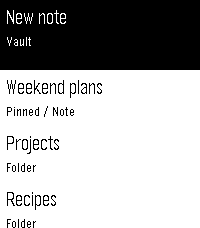
Tools & UtilitiesYour Obsidian vault, on your wrist. Free, MIT open source, public beta. Dictate new notes or append to existing ones. Quick Dictate captures a 15-second recording; Stitch joins sections into longer notes. Speak a search term to find likely notes. Browse folders and notes, sort by name/date/tag, pin favorites and hide folders. Read complete task text, check tasks and open linked notes. Local photos, Excalidraw drawings and PDF pages fill the reader width with correct proportions. PDFs are read-only without zoom; limits are 20 MB and 1,000 pages. Choose Natural, High contrast or Original image processing. Customize themes, fonts, colors, Select, long presses and Double Back. Up and Down always navigate. Touch uses tap to highlight, then tap again to open. REQUIRED MAC DOWNLOAD: https://github.com/GeezusChrotch/organik-pebble-connector/releases/latest Requires macOS 14+ and compatible Organik Apps Connector 0.8.1+. Keep an always-on Mac awake, online and running Connector. Select your local Obsidian vault in Connector. Install and connect Tailscale on BOTH the Mac and paired phone in the same private network for access at home or away. Sleeping/offline Macs cannot sync. iPhone is the tested setup. No Obsidian plugin, subscription, Notesy account or analytics. Local attachments use your private connection. Web links may be fetched for page titles; remote images and full plugin layouts are unsupported. Setup and privacy: https://github.com/GeezusChrotch/notesy
 1
1Remindery
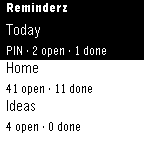
Tools & UtilitiesRemindery brings Apple Reminders to Pebble Time and Pebble Time 2. Browse lists, check or reopen reminders, dictate new items, and delete with confirmation. Pin favorite lists and browse every reminder in 50-item pages. Long selected titles scroll. Menus start at the top; touch uses tap to focus, then tap again to activate. Buttons work too. Silent 15-second refresh is optional. Phone Settings offers themes, fonts, colors, saved presets, and customizable short/long presses and Double Back. REQUIRED MAC DOWNLOAD: https://github.com/GeezusChrotch/organik-pebble-connector/releases/latest Use the Developer ID signed/notarized Organik Apps Pebble Connector from GitHub while the Mac App Store version is under review. Keep an always-on Mac awake, online, and running the Connector. Install Tailscale on BOTH the Mac and paired phone, on the same private tailnet, for access at home or away. Sleeping the Mac or quitting the Connector stops access. The watch does not connect directly to iCloud. Allow full Apple Reminders access on the Mac. Scan the Connector's QR code on the phone, copy pairing details there, and paste them into Pebble → Remindery → Settings. No Universal Clipboard needed. Requires macOS 14+, Apple Reminders lists on that Mac, and a working Pebble dictation service for voice entry. iPhone is the tested setup. Displays up to 30 lists. Free, MIT open source. No developer cloud, ads, analytics, public Funnel, or router port forwarding.
 12
12Beepster
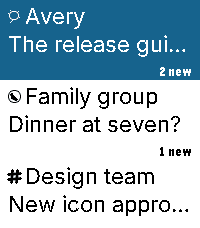
NotificationsAn independent, free, open-source Beeper client for Pebble Time 2. Read chats, dictate replies, use saved replies and bitmap emoji, and view full-width photos. Reactions appear beneath messages with sender indicators. Larger service icons and wider sender stripes distinguish conversations. Supported GIFs play short, reduced-detail loops; YouTube links can show thumbnail cards. Photos preserve their proportions, with scrolling and low-memory fallbacks. Choose Natural, High contrast or Original processing without changing source attachments. GIFs may fall back to a still; one attachment per message is supported. Videos do not play. Browse in 12-conversation batches with swipe selection and automatic boundary loading. The current list stays visible while the next batch arrives. Returning from a chat preserves your older page. Jump to newest returns to the top. Navigation briefly pauses during transfer. Customize themes, buttons, saved replies and link visibility. Archive conversations and delete messages for yourself where supported, with confirmation. iMessage message deletion remains disabled; archiving is available. Optional Hermes/OpenClaw Approve, Deny and supported Always controls work in explicitly linked agent chats. Decisions use physical buttons only, with Always confirmation. Check the agent result after sending a decision. Requires macOS 14+, Beeper Desktop, Organik Apps Pebble Connector 0.8.7+, and Tailscale on Mac and phone. Keep the Mac awake. iPhone is the tested setup. Update Connector first, choose Beepster → Set up service, then reopen phone settings. Connector guides permission setup for protected Apple Messages attachments. Final media changes passed automated and emulator checks; physical-watch media confirmation remains pending. Install: https://geezuschrotch.github.io/beepster/INSTALL Feedback: https://github.com/GeezusChrotch/beepster/issues
 2
2Pome
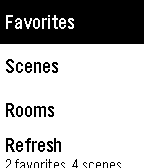
Tools & UtilitiesPome puts Apple Home controls on Pebble Time and Time 2 through Itsyhome on your Mac. Make your Home Screen yours: pin scenes, rooms, devices and sensors, then drag to reorder pins and sections in phone settings. Device pins open controls directly. Hide sections you do not use and assign favorite actions to button holds or Double Back. Browse scenes, favorites, rooms and read-only sensors. Control lights individually or together by room, set brightness and colors, adjust supported fan speeds and blinds, and toggle switches and plugs. Device controls stay open while you make adjustments. Personalize with ten built-in themes and saved custom themes. Preview colors and fonts, choose title and subtitle sizes, and show or hide icons. Time 2 offers five custom font families and five title sizes; original Time uses supported stock fonts. Long titles scroll when selected. On dictation-capable watches, try "Set movie time" or "Turn living room lights green." Voice requires the phone companion’s transcription service. Touch menus on Time 2 use a tap to focus and a second tap to activate; physical buttons remain available. Setup: install Itsyhome (https://itsyhome.app/macos), enable its Webhooks/CLI server, and enter a reachable URL in Pome’s phone settings. The Organik Apps Pebble Connector helps coordinate Mac setup. For private access away from home, use Tailscale on your Mac and iPhone with Tailscale Serve. Your Mac must remain reachable. Do not expose the server using Funnel or router port forwarding. Setup instructions: https://github.com/GeezusChrotch/pome Camera viewing is experimental and NOT included in public Pome 3.0. The public Connector does not include the HomeKit camera helper. Pome has no analytics or hosted relay. Independent open-source community project; not affiliated with Apple, Itsyhome, Tailscale or Pebble.