Music Assistant Control
snoe
Watchapp
Description
Music Assistant Remote turns your Pebble Time 2 into a proper remote for your Music Assistant server. Transport, volume, multi-room grouping, and one-tap shortcuts to your library — all from your wrist.

It's built specifically for the Time 2's touchscreen and four buttons. Music Assistant works either as a standalone server or as a Home Assistant add-on; either is fine.

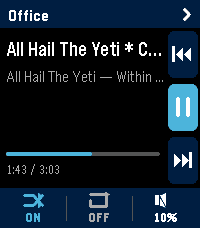
The now-playing screen shows the current track, artist, album, elapsed and total time, and a progress bar. The right edge of the screen has a column of three icons for previous, play-pause, and next — they're tap targets, but the
watch's UP, SELECT, and DOWN buttons do the same things. Along the bottom is a strip showing whether shuffle and repeat are on, plus the current volume. Tap the shuffle bit to flip it. Tap repeat to cycle off, all, one. Tap the volume
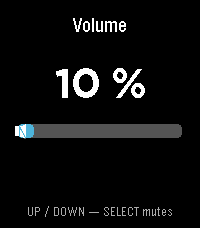
bit to jump into a full-screen volume control where UP and DOWN nudge the level and SELECT mutes.

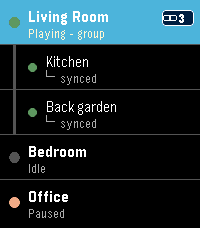
Switching players is easy. Tap the player name at the top of the screen and you get a list of every player your server knows about, sorted alphabetically, with a green/amber/grey dot showing whether each one is playing, paused, or
idle. By default the watch sticks to whatever player is currently playing, but tap any row to take over a different one.

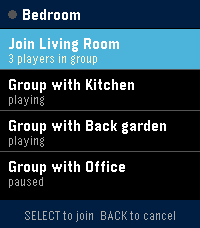
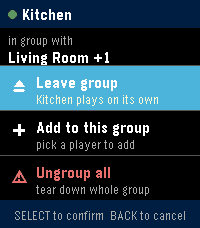
Long-press any player row in that list and you get an action sheet for grouping. If the player is on its own, you'll see a list of every other player it can join. If it's already in a group, you'll see options to leave, add another
player, or tear the whole group down. Members appear indented underneath their master in the list, with a chain badge on the master so you can read the setup at a glance.

Quick Play is the shortcuts feature. Long-press SELECT on the now-playing screen and you get a menu of up to ten things you've pinned — albums, artists, playlists, whatever your library has. Tap one and it starts playing on whichever
player you're currently controlling. You set the shortcuts up on the settings page from your phone: type into the search box, the page hits your Music Assistant server directly, you tap a result to pin it. The shortcuts live on the
watch too, so the menu still works even if your phone hasn't synced yet.

A few things worth knowing before you configure it. The settings page is served from GitHub Pages, so your Music Assistant server needs to accept CORS requests from that origin. If you're running MA as a Home Assistant add-on the
easiest fix is a small bit of config on whatever reverse proxy you have in front of it.
- Developersnoe
- CategoryRemotes
- PlatformsTime 2
- Updated2026-06-22
- Version1.2.1