# pebble-timer-quick
QuickTimer is a timer app for the Pebble Smartwatch, intended to be the fastest
way to start a timer or stopwatch. Made for people that think needing 5 seconds
to set a countdown timer or stopwatch is far too long. With QuickTimer, rest
assured that you are not fiddling away precious moments of your life.
QuickTimer starts counting as soon as you open the app. First press the button,
then think how long the timer needs to be. If you want a timer for 1 minute
and it takes you 6 seconds to start the timer, then your timer will be off by
10%, and that can be life or death. If you like your soft boiled eggs cooked
for exactly 6 minutes and 20 seconds, QuickTimer will help you get the gooey
texture you desire.
QuickTimer works by pressing buttons to increment the countdown timer by set
amounts (1, 5, 20, 60). Once you get used to this, you can set a timer without
even looking at your watch. Here's how it works:
- Open the app
- You enter new timer mode where each button press adds a given amount of minutes
to the total countdown time
- After 3 seconds of inactivity your timer is set
- If you don't press anything, QuickTimer goes into stopwatch mode instead
- Once you are in counting mode, you can edit your timer, restart your timer,
or you can enable repeat timers
- Timers that are in alarm can be repeated, snoozed for 5 minutes, or silenced
to become post timer stopwatches.
## Features
### Run several timers at once
Need to track more than one thing? Turn on **Multiple Timers** in the settings
and QuickTimer can keep up to five timers and stopwatches running at the same
time. When you open the app it shows a list of everything that's running —
scroll to one and select it to jump straight in, or pick **New Timer** to start
another. Hold Down on a timer in the list to delete it.
### Every timer has a name — and you can speak a new one
So you never lose track of which timer is which, QuickTimer automatically gives
each one a short, memorable name the moment it's created. On Pebbles with a
microphone, you can rename the active timer with your voice: while you're setting
a timer, hold **Up** first and then press **Back**, then just say the new name.
(Requires the **Voice naming** setting to be enabled and a connected phone.)
### Millisecond stopwatch
Timing something precise? Pause a stopwatch while it's under an hour and
QuickTimer shows the milliseconds too (e.g. `1:23.456`), so you can read off an
exact split. The milliseconds disappear once it passes an hour to keep the
display readable, and they only ever show on stopwatches — never on countdown
timers.
Based on [YclepticStudios/pebble-timer-plus](https://github.com/YclepticStudios/pebble-timer-plus).


## Buttons
### New timer mode
- Back: Add 1 hour
- Up: Add 20 mins
- Select: Add 5 mins
- Down: Add 1 min
- Hold Up: Toggle reverse direction (increments become decrements)
- Hold Select: Switch to EditSec mode (seconds granularity)
- Hold Up then press Back: Voice rename the timer (microphone models, when Voice naming is enabled)
- Hold Down: Quit app and delete timer
After 3 seconds of inactivity, the timer is set and transitions to counting mode.
### EditSec mode (seconds granularity)
- Back: Add 60 seconds
- Up: Add 20 seconds
- Select: Add 5 seconds
- Down: Add 1 second
- Hold Up: Toggle reverse direction
- Hold Select: Switch back to New mode (minutes granularity)
- Hold Up then press Back: Voice rename the timer (microphone models, when Voice naming is enabled)
- Hold Down: Quit app and delete timer
### EditRepeat mode
Entered by holding Up while in counting mode (countdown timers only).
- Back: Reset repeat count to 0
- Up: Add 20 repeats
- Select: Add 5 repeats
- Down: Add 1 repeat
- Hold Down: Quit app and delete timer
### Counting mode
- Up: Enter edit mode
- Select: Toggle play/pause
- Down: Extend high-refresh display rate
- Back: Quit app
- Hold Up: Toggle repeat mode on/off (countdown only)
- Hold Select (running): Restart timer to original length
- Hold Select (paused): Reset to 0:00 and enter EditSec mode
- Hold Down: Quit app and delete timer
When a stopwatch is paused and under an hour, the display shows milliseconds
(e.g. `1:23.456`).
### Alarm mode
When a countdown timer expires, it enters alarm mode (vibrating).
- Up: Silence alarm and enter edit mode
- Select: Silence alarm and toggle play/pause
- Down: Snooze (add 5 minutes)
- Back: Silence alarm (timer continues as stopwatch)
- Hold Up: Repeat timer (restart with original length)
- Hold Select: Restart timer from original length (running)
- Hold Down: Quit app and delete timer
## Quickness
The table below compares the number of button presses required to set timers in
QuickTimer versus in the default Pebble timer.
```
| Timer Amount | QuickTimer | Default Pebble Timer |
|--------------|------------|----------------------|
| 1 min | 2 | 5 |
| 2 min | 3 | 6 |
| 3 min | 4 | 7 |
| 4 min | 4 | 8 |
| 5 min | 2 | 5+ |
| 6 min | 3 | 5+ |
| 7 min | 4 | 5+ |
| 8 min | 5 | 5+ |
| 9 min | 5 | 5+ |
| 10 min | 3 | 5+ |
| 11 min | 4 | 5+ |
| 12 min | 5 | 5+ |
| 13 min | 6 | 5+ |
| 14 min | 5 | 5+ |
| 15 min | 4 | 5+ |
| 16 min | 5 | 5+ |
| 17 min | 6 | 5+ |
| 18 min | 5 | 5+ |
| 19 min | 4 | 5+ |
| 20 min | 2 | 5+ |
| 25 min | 3 | 5+ |
| 30 min | 4 | 5+ |
| 35 min | 5 | 5+ |
| 40 min | 3 | 5+ |
| 45 min | 4 | 5+ |
| 50 min | 5 | 5+ |
| 55 min | 4 | 5+ |
| 59 min | 4 | 5 |
| 60 min | 2 | 5 |
| stopwatch | 1 | x |
```
 27
27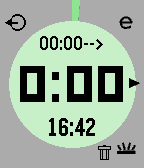 125
125