 10
10Shutter
FOR ROOTED DEVICES ONLY.
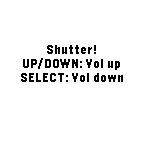
This app allows you to take a photo on your Android phone It emulates touchscreen press on the app's shutter button and takes a picture/starts or stops a video. Android companion app needed.
 11
11Nuki Bridge - Opener
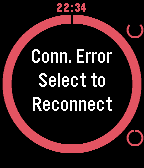
With this app you can manage your Nuki Smartlock.

Note that a (software or hardware) Nuki Bridge is required for it to work.
 4
4Tell-A-Photo
This is a support watch app for the MACAAN system. Please contact us before downloading if you don't know what it is.
 4
4ZIKSwitcher
For smart switcher XiaoK product.
XiaoK Official Site:
http://www.ikonke.com/index.php
 22
22Wrist Home Assistant
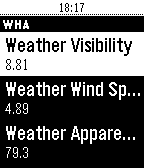
Connects to your Home-Assistant (home-assistant.io) instance. Can control lights and switches at this time.
 0
0s0lrider
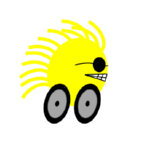
This app allows you to control s0lrider (solar Knight Rider) robot via voice commands. The robot can be charged by sun and even has the cool red scanner lights! :)
more details here: https://s0lrider.blogspot.com
or here: https://www.youtube.com/watch?v=vYFRg15Gf5g
 5
5Light-Controller (BETA)
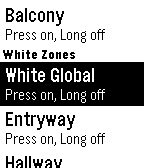
Control your LimitelessLED, milight or EasyBulb lights with your pebble!
This is currently the BETA build, so only has basic functionality working (on/off) but there is colourful UI to come! (This was built and tested with a physical aplite watch) This will also require you to participate in the beta program for the companion app. Please head over to the Google+ page to sign up https://plus.google.com/communities/117265785994204078301

On first install, you will need to go into the settings of the companion app and turn on pebble functionality.
Features:
* Single click select button to turn on, long press to turn off
* Rename your zones in the app, and they will show on the watch!

Coming soon:
* Colour in the UI (including coloured zone menu items based on the colour of the lights)
* Optimise for round devices
* Options to change how you turn lights on/off. Choose between toggle (single click once to turn on, then once again for off), single/long click or suggest a method that works for you!

Feel free to drop by the github page too, to request some feature, or report a bug! (https://github.com/eliotstocker/Light-Controller/issues)
Enjoy
 229
229OW Camera Remote
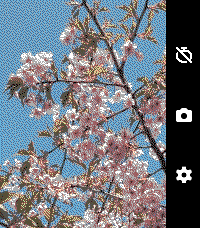
OW Camera Remote lets you preview your phone's camera and remotely take pictures with a timer. Rebuilt and enhanced from the original app version from 10 years ago.

Set a timer, strike a pose, and have your pic taken.

Controls:
Up: Toggle timer duration (max 15 seconds)
Middle: Start the timer capture
Down: Open the settings window

Settings:
Switch Camera: Toggle between front and rear phone cameras
Preview: Toggle whether to show a live preview from your camera
Timer: Toggle timer duration (max 15 seconds)
Timer Vibration: Toggle whether to vibrate on each countdown second
Dither: Choose the dither mode for the preview image (defaults to Floyd-Steinberg)
Color Mode: Choose between color and black-and-white preview (color devices only). Black-and-white previews have a faster frame rate.

Does not support iOS.

Requires the Android companion app, OW Camera 2 for Pebble.
 10
10OnOffHue
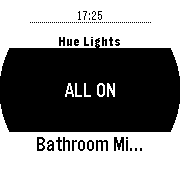
Control your hue lights from your wrist.
 9
9Tasker Trigger 2
Just a simple app that does nothing except show up in the logcat on your phone so you can trigger Tasker tasks. THe UUID is
2fd12e29-fb92-46c9-af9f-c61928a5699b
 9
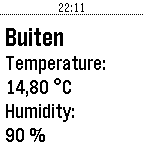
9HomeWizard QuickSwitch
Setup a ordered list of available homewizard switches in the configurator.

Turn on - click
Turn off - long click
 8
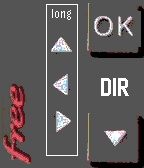
8Freebox Telec
Remote for French Freebox Revolution player
Télécommande Freebox Revolution

3 modes : Volume, Programme, et Pavé directionnel (SELECT pour permuter)
Appuis long : Play/pause, Marche/Arrêt, Muet

Français uniquement
 5
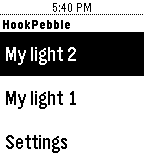
5Hook
Control your Hook devices on Pebble watch!
 20
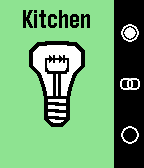
20watch2lights
watch2lights for Pebble watch and Philips Hue.
Switch your lights ON or OFF using your Pebble.
With groups support
The status shown on the watch is the status of the lights reported by the Philips Hue bridge.

By: Harrie45

This watchapp was not developed by Philips.
 14
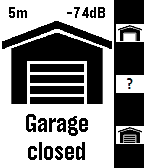
14Garadget Controller
Remote control for the Garadget garage door controller.

Shows door state, time since last change and wifi signal strength.

Controls are as follows:

Up: open door
Down: close door
Select: check door status

and if you have more than one door:
Long up: go to previous door
Long down: go to next door